Umbra
Place a tone on a zone
A RAW developer for the Mac.
Juan M. Cornejo
Umbra
A notebook
In Umbra a point in the picture can be placed on a zone, so that it prints at the grey I choose.
- Notes2
- The Zones tool, sketched3
- Place a tone on a zone4
- Eleven zones, two pins5
- Try it6
- The Zones tool7
- The wedge, close8
- What each pin changes9
- In short10
A RAW developer for the Mac, built for how I edit: cull from the keyboard, dodge and burn in layers, print in black and white.
1Umbra
Notes
- There are eleven zones, one stop (a doubling of light) apart. Zone V is mid-grey, zone 0 is black and zone X is white.
- Click a point and the tool reads the plain mean of a 5 by 5 pixel area around it.
- Pick the zone the point should print in. Exposure moves by exactly the difference between the two zones.
- In colour, a second point sets the contrast. There is no formula for it, so the tool halves the range fourteen times until it fits.
- The contrast pivots on the first point, so the first point keeps its zone.
- When no contrast setting reaches the zone, the wedge says so: “Zone X is out of reach.”
- Each zone’s grey has a lightness (L*) of ten times its number: zone V is L* 50.
- In black and white the second point sets Development instead, and Exposure moves to hold the first point’s density.
- Esc undoes everything the tool changed since it opened, as one step. Return applies and closes.
2Notes
The Zones tool, sketched
Figure 1. The Zones tool, sketched in code: the picture cut into bands, a pin on one point, and the wedge, the row of eleven zones to pick from.
3Umbra
Chapter 1
Place a tone on a zone
In Umbra’s Zones tool I click a point in the picture and pick the zone it should print in. A zone is one of eleven grey bands, each one stop (a doubling of light) from the next. Exposure then moves by the number of stops between the zone the point is in and the one I picked.
In colour, a second point sets the contrast, and the first point keeps its zone. Exposure has an exact formula. Contrast has none, so the tool searches for it and says when no setting reaches the zone.
4Place a tone on a zone
Eleven zones, two pins
| Zone | Stops from mid-grey | Print L* | Grey |
|---|---|---|---|
| 0 | -5 | 0 | |
| I | -4 | 10 | |
| II | -3 | 20 | |
| III | -2 | 30 | |
| IV | -1 | 40 | |
| V | +0 | 50 | |
| VI | +1 | 60 | |
| VII | +2 | 70 | |
| VIII | +3 | 80 | |
| IX | +4 | 90 | |
| X | +5 | 100 |
A point 1.7 stops under mid-grey sits in zone 3.3. Asked to print in zone V, it moves Exposure by exactly +1.7 EV (exposure value, counted in stops). A second point, 2.4 stops over, is asked to print in zone VIII. Fourteen halvings of the range find Contrast -67, with the pivot on the first point, which still prints at L* 49. Asked to print in zone X, a point near mid-grey is out of reach, and the wedge says so.
Table 1. The eleven zones, and the two pins worked through in the text. They were computed when the page was built, by the Zones tool’s method ported to this page. The page uses its own tone curve, so the method is the app’s and the numbers are the page’s.
5Umbra
Try it
Click the photograph to place a point.
Figure 2. The Zones tool’s method on one of my photographs, printed through the page’s own tone curve. A point reads the mean of the 5 by 5 pixels around it, as in the app. Click a point and pick its zone, then click a second point and pick again.
6Try it
The Zones tool
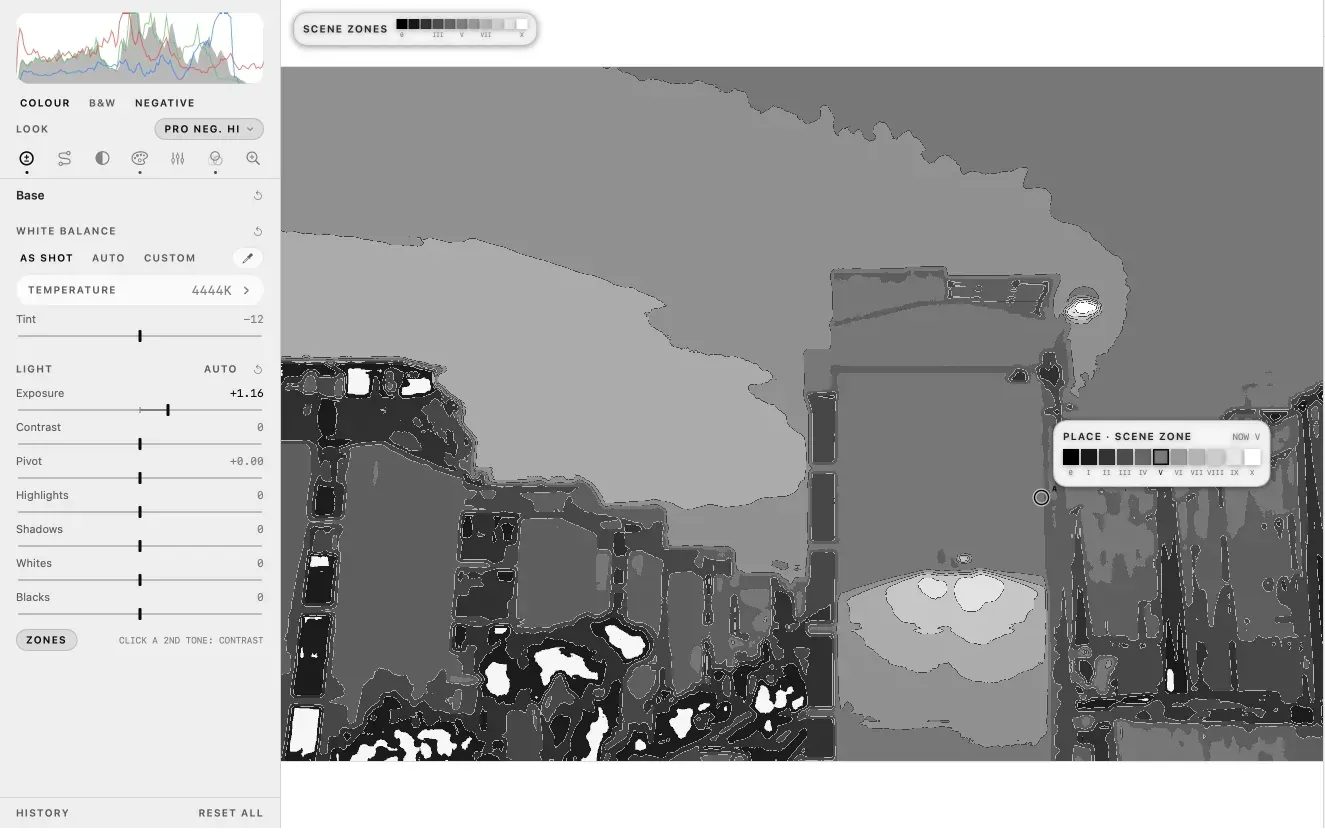
- 1The picture drawn as eleven grey bands, one a zone
- 2Pin A, the point being placed
- 3The wedge: eleven zones, one stop apart
- 4NOW V: the zone the point is in
- 5Exposure, the slider the pin moves
- 6Zones on: a second tone sets the contrast
Plate 1. The Zones tool on one of my photographs, in the colour tab. The picture is drawn as eleven grey bands, the pin sits in zone V, and picking another zone on the wedge moves Exposure by the difference.
7Umbra
The wedge, close
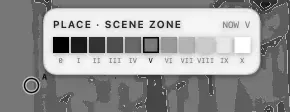
- 1Pin A
- 2Zone 0, black
- 3Zone V, outlined: where the point sits now
- 4Zone X, white
- 5NOW V
Plate 2. The wedge, enlarged from the same frame. Each swatch is one zone, one stop apart, from black to white; the outlined one is the zone the pinned point is in.
8The wedge, close
What each pin changes
Figure 3. Top: the eleven zones in their own tones, with exposure carrying pin A up the wedge. Bottom: the zone a tone was against the zone it prints in. Contrast tilts that line about pin A, so pin B moves.
- 1Every point has a zone: its stops from mid-grey, plus five.
- 2Pin A: exposure moves it to the zone picked.
- 3Pin B: contrast moves it, pivoting on pin A. The tool finds the value by bisection: it halves the range fourteen times.
9Umbra
In short
Exposure is arithmetic and contrast is a search. The Zones tool is exact where it can be, and says “out of reach” where no setting fits.
The rest of Umbra is in the case study: culling from the keyboard, dodge and burn in layers, and the black and white print.
10In short